
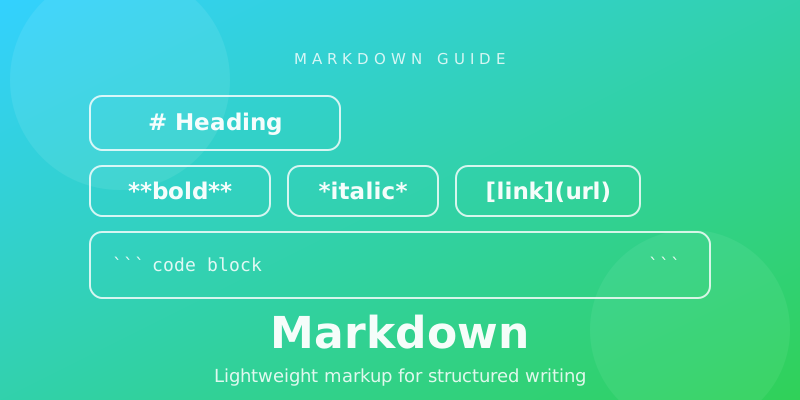
Markdown: The Complete Guide
Markdown is a lightweight markup language that lets you format text using simple, readable symbols. Instead of working with complex formatting tools, you can create headings, lists, links, images, tables, and code blocks using ordinary characters.
Whether you're writing technical documentation, creating a personal knowledge base, documenting a software project, or publishing content online, Markdown offers a simple and flexible way to structure information.
In this guide, you'll learn everything you need to get started with Markdown, explore its most useful syntax, understand advanced features, and discover practical tips for writing clean, portable documents.
In this guide, you'll learn how to:
- Understand what Markdown is and how it works.
- Format text using headings, lists, links, and images.
- Write code examples and create tables.
- Use task lists, footnotes, and other extended features.
- Understand the differences between Markdown implementations.
- Write maintainable Markdown documents.
- Find the most useful syntax in a quick-reference cheat sheet.
1. What Is Markdown?
Markdown is a lightweight markup language created by John Gruber, with contributions from Aaron Swartz, and released in 2004.
Its main purpose is to make formatted text easy to write and read in its original, plain-text form.
A Markdown document uses ordinary characters to represent formatting. For example, a heading begins with a hash symbol (#), bold text is surrounded by double asterisks (**), and a bulleted list uses hyphens (-).
Consider this example:
# My First Document

This is a paragraph with **bold text** and *italic text*.

## My Tasks

- Learn Markdown
- Write documentation
- Build a knowledge base

[Visit Example](https://example.com)
A Markdown processor can render this source as a formatted document with headings, emphasized text, a list, and a clickable link.
The important distinction is that Markdown itself is a writing syntax. A Markdown processor interprets that syntax and converts it into a rendered representation, commonly HTML.
Markdown files typically use the .md extension, although .markdown is also used.
Why Is Markdown Popular?
Markdown combines the simplicity of plain text with enough structure for most everyday writing tasks.
Its main advantages include:
- Readability: The source remains understandable even without rendering.
- Portability: Plain-text files can be opened by many editors and tools.
- Simplicity: Most formatting requires only a few characters.
- Version control: Text changes can be tracked using Git and similar systems.
- Reusability: Documents can be converted into different output formats.
- Automation: Markdown can be processed by scripts, documentation generators, and publishing systems.
Markdown is widely used in software documentation, README files, technical blogs, note-taking applications, knowledge bases, and content publishing workflows.
2. Why Use Markdown?
Markdown is useful whenever you need structured content without the overhead of a rich-text editor.
Technical Documentation
Developers use Markdown to document installation steps, API endpoints, configuration options, architecture decisions, and development workflows.
A README.md file, for example, often explains what a project does, how to install it, and how to run it.
Personal Knowledge Management
Markdown is well suited to personal notes, research, meeting summaries, reference materials, and interconnected knowledge bases.
Because notes are stored as text files, they can be searched, edited, backed up, and processed using many different tools.
Writing and Publishing
Markdown allows writers to focus on content instead of manually adjusting formatting. Many static site generators and publishing systems accept Markdown as their primary content format.
Collaboration and Version Control
Since Markdown is plain text, changes can be reviewed as line-by-line differences. This makes it particularly useful for collaborative documentation and content maintained alongside source code.
Long-Term Portability
A Markdown file does not require a particular application to remain readable. Even if your preferred editor disappears, the underlying text can still be opened with a basic text editor.
However, portability has limits: application-specific extensions, embedded media, and external attachments may require additional tools or files.
3. How Markdown Works
A typical Markdown workflow has three parts:
- Write: Create a document using Markdown syntax.
- Process: A Markdown parser interprets the syntax.
- Render: A compatible application displays the formatted result.
For example:
# Getting Started

Markdown makes **structured writing** simple.

- Write in plain text.
- Add lightweight formatting.
- Preview the rendered document.
A compatible renderer interprets the hash symbol as a heading, the double asterisks as emphasis, and the hyphens as list markers.
Not every application renders Markdown identically. Basic syntax is widely supported, but advanced features can differ between platforms.
This distinction becomes important when you move documents between editors, documentation systems, and publishing platforms.
4. Markdown Basic Syntax
The following sections cover the essential syntax used in most Markdown documents.
4.1. Headings
Headings organize content into a clear hierarchy.
Use one to six hash symbols (#) before the heading text:
# Heading 1

## Heading 2

### Heading 3

#### Heading 4

##### Heading 5

###### Heading 6
The number of hash symbols determines the heading level:
#— Level 1##— Level 2###— Level 3####— Level 4#####— Level 5######— Level 6
A heading usually starts on a new line. Adding a space after the hash symbols is a reliable convention.
Best practices:
- Use one clear top-level heading for the document.
- Organize major sections with level-two headings.
- Use lower-level headings for subsections.
- Avoid skipping heading levels without a good reason.
- Choose headings based on meaning, not just visual appearance.
Some Markdown processors also support alternative heading syntax:
Main Heading
============

Subheading
----------
This alternative style supports only the first two heading levels and is less commonly used in modern Markdown documents.
4.2. Paragraphs and Line Breaks
A paragraph is a block of text separated from other blocks by a blank line.
This is the first paragraph.

This is the second paragraph.
A common beginner mistake is assuming that every newline creates a new paragraph.
In standard Markdown, a single newline within a paragraph is generally treated as a space:
This is one paragraph
even though the source has two lines.
To create a new paragraph, insert a blank line.
To force a line break within the same paragraph, use two trailing spaces or a backslash at the end of the line:
First line.
Second line.
The two trailing spaces are easy to overlook, so use forced line breaks only when they improve readability. Support and conventions can vary across Markdown environments.
4.3. Bold, Italic, and Strikethrough
Markdown provides simple ways to emphasize text.
| Formatting | Syntax | Result |
|---|---|---|
| Bold | **bold text** |
bold text |
| Italic | *italic text* |
italic text |
| Bold and italic | ***important text*** |
important text |
| Strikethrough | ~~deleted text~~ |
Examples:
This is **bold text**.

This is *italic text*.

This is ***bold and italic text***.

This is ~~outdated information~~.
Underscores can also be used for emphasis:
__Bold text__

_Italic text_
Asterisks are often easier to read in documents containing underscores in technical identifiers.
Tip: Use emphasis to communicate meaning, not to decorate every sentence. Too much bold or italic text makes important information harder to distinguish.
4.4. Lists
Markdown supports unordered lists, ordered lists, and nested lists.
Unordered Lists
Use a hyphen, asterisk, or plus sign followed by a space:
- First item
- Second item
- Third item
You can also write:
* First item
* Second item
* Third item
Or:
+ First item
+ Second item
+ Third item
Choose one marker style and use it consistently within a document.
Ordered Lists
Use numbers followed by periods:
1. Install the application.
2. Configure the settings.
3. Start the application.
Many Markdown processors determine the displayed numbering from the list structure rather than requiring every source number to be sequential. Nevertheless, sequential numbering makes the source easier to understand.
Nested Lists
Indent list items to create a hierarchy:
- Frontend
  - Components
  - Pages
  - State management
- Backend
  - API
  - Database
  - Authentication
Correct indentation is important. The exact spacing needed for nested content can depend on the list marker and Markdown implementation.
Lists with Multiple Paragraphs
You can include additional paragraphs or other blocks within a list item by indenting them appropriately.
1. Prepare the document.

   Check the title, headings, and links.

2. Review the content.

   Confirm that all examples work.
For nested lists, tables, and other complex content, consistent indentation helps prevent unexpected rendering.
4.5. Links
Links connect your document to websites, other documents, and resources.
The standard inline link syntax is:
[Link text](https://example.com)
Example:
Read the [Markdown documentation](https://example.com/docs).
The link text is displayed as clickable text.
Links with Titles
You can add an optional title:
[Documentation](https://example.com/docs "Read the documentation")
Some renderers display the title as a tooltip when the user hovers over the link.
Reference-Style Links
Reference links separate the link text from the destination:
Read the [official documentation][docs].

[docs]: https://example.com/docs
This is particularly useful when the same destination appears multiple times in a long document.
Relative Links
Relative links are useful when working with a collection of Markdown files:
[Installation Guide](./installation.md)

[Architecture](../reference/architecture.md)
Their destinations depend on the location of the current document and the environment that resolves the link.
Best practices for links:
- Use descriptive link text.
- Avoid vague labels such as "click here."
- Verify that destinations remain valid.
- Prefer relative links for documents within the same portable collection.
- Consider whether the destination requires authentication or a specific application.
4.6. Images
Images use syntax similar to links, with an exclamation mark at the beginning:

Example:

The alternative text describes the image for users who cannot see it and for assistive technologies.
Images with Titles

Images from URLs

The remote image must remain accessible, and the renderer must permit loading it.
Controlling Image Dimensions
Standard Markdown does not define a universal syntax for setting image width and height. Some renderers support HTML:
<img src="dashboard.png" alt="Product dashboard" width="600">
HTML support and sanitization rules vary between applications.
Important: A Markdown file containing images is not necessarily self-contained. If the images are stored separately, preserve the relative paths and include the corresponding files when moving or exporting the document.
4.7. Blockquotes
Use the greater-than symbol (>) to create a blockquote:
> This is a blockquote.
For multiple paragraphs:
> This is the first paragraph.
>
> This is the second paragraph.
Blockquotes can also contain other Markdown elements:
> ## Important Information
>
> Read the instructions carefully.
>
> - Check the requirements.
> - Verify the configuration.
Blockquotes are useful for quotations, contextual notes, and highlighting passages from other sources.
However, a blockquote is not automatically a semantic warning or an alert. Special alert styles require additional conventions supported by particular renderers.
4.8. Inline Code and Code Blocks
Markdown makes it easy to display code, commands, configuration values, and technical identifiers.
Inline Code
Wrap a short code fragment in single backticks:
Run `npm install` to install the dependencies.
This is useful for commands, variable names, file paths, and short snippets.
Fenced Code Blocks
Use three backticks before and after a block of code:
```javascript
const greeting = "Hello, world!";
console.log(greeting);
```
The language identifier after the opening backticks helps compatible renderers apply syntax highlighting.
Examples:
JavaScript
```javascript
const sum = (a, b) => a + b;
console.log(sum(2, 3));
```
Python
```python
def greet(name):
    return f"Hello, {name}!"

print(greet("Alex"))
```
JSON
```json
{
  "name": "Markdown Guide",
  "version": "1.0"
}
```
Bash
```bash
npm install
npm run dev
```
Code Blocks Without Syntax Highlighting
You can omit the language identifier:
```
Plain code block
No language specified
```
Code Blocks Containing Backticks
If your example contains three consecutive backticks, use a longer fence around it:
````markdown
```javascript
console.log("Hello");
```
````
This technique is especially useful when documenting Markdown syntax itself.
Best practices:
- Specify a language when appropriate.
- Keep code examples focused.
- Make sure examples are valid and reproducible.
- Avoid putting long code samples inside inline code.
- Explain what a snippet does when its purpose is not obvious.
4.9. Horizontal Rules
A horizontal rule creates a visual divider between sections.
Use three or more hyphens, asterisks, or underscores on a separate line:
---
Other valid examples include:
***
___
A horizontal rule can separate major parts of a document, but it should not replace a meaningful heading hierarchy.
5. Advanced Markdown Syntax
Basic Markdown is enough for many documents. Additional features become useful when you create technical documentation, structured notes, or more complex content.
Keep in mind that some advanced syntax is defined by extensions rather than the original Markdown specification.
5.1. Tables
Tables organize structured information into rows and columns.
A common table syntax uses pipes (|) to separate columns and hyphens (-) to separate the header from the body:
| Feature | Markdown | HTML |
|---|---|---|
| Readability | High | Lower |
| Formatting | Simple syntax | Explicit tags |
| Common use | Notes and documentation | Web documents |
The result is a table with three columns.
Aligning Table Columns
In Markdown implementations that support table alignment, colons control horizontal alignment:
| Left | Center | Right |
|:---|:---:|---:|
| Text | Text | Text |
| More | More | More |
:---aligns text to the left.:---:centers text.---:aligns text to the right.
Tables are useful for feature comparisons, configuration references, and concise data summaries.
Limitations: Tables are not part of the original core Markdown syntax. Their support depends on the Markdown flavor. Complex layouts, merged cells, and rich interactive elements generally require other techniques.
5.2. Task Lists and Checklists
Task lists are useful for project tracking, documentation reviews, and personal productivity.
In GitHub Flavored Markdown, an unchecked task uses [ ], while a completed task uses [x]:
- [x] Define the article structure
- [x] Write the first draft
- [ ] Review the examples
- [ ] Publish the article
Compatible renderers display these items as checkboxes.
Task lists are particularly useful in README files, issues, project plans, and notes.
However, not every Markdown viewer supports interactive checkboxes. In some environments, the syntax may appear as ordinary text.
5.3. Escaping Special Characters
Sometimes you need to display a character without triggering its Markdown formatting behavior.
Use a backslash (\) before supported special characters:
\*This is not italic text\*

\# This is not a heading

\[This is not a link\]
This technique is called escaping.
Common characters that may require escaping include:
\ ` * _ { } [ ] < > ( ) # + - . ! |
The exact parsing rules depend on the context and Markdown implementation.
For example, escaping a hash at the beginning of a line prevents it from being interpreted as a heading marker in standard Markdown.
5.4. HTML in Markdown
Many Markdown processors allow some HTML elements to be included directly in a document.
Example:
<details>
  <summary>Show additional information</summary>

  This content can be expanded in compatible environments.

</details>
This can be useful when Markdown does not provide the exact formatting or interaction you need.
Other common HTML elements include:
<br>for line breaks.<sub>for subscript text.<sup>for superscript text.<kbd>for keyboard input.<details>and<summary>for expandable sections, where supported.
For example:
Water is H<sub>2</sub>O.

The result is 10<sup>2</sup> = 100.
Although HTML can extend Markdown, it should be used carefully.
Some renderers restrict or sanitize HTML for security reasons. Certain elements may not render at all, and application-specific behavior can differ.
Prefer standard Markdown whenever it meets your needs.
5.5. Footnotes
Footnotes provide additional explanations or references without interrupting the main text.
In Markdown implementations that support footnotes, the syntax looks like this:
Markdown is widely used for technical documentation.[^1]

[^1]: Markdown was introduced in 2004 by John Gruber, with contributions from Aaron Swartz.
A footnote reference connects the sentence to a definition elsewhere in the document.
Footnotes are useful for:
- Additional context.
- Source references.
- Technical clarifications.
- Definitions that would interrupt the main narrative.
Footnotes are an extension, so check whether your target platform supports them before relying on this syntax.
5.6. Autolinks
Some Markdown implementations automatically recognize URLs and email addresses.
For example, GitHub Flavored Markdown supports bare URL autolinks in appropriate contexts.
A URL can be written directly:
https://example.com
Explicit links are usually preferable when you need descriptive anchor text:
[Visit Example](https://example.com)
Autolinking behavior varies by processor. If you need consistent results across platforms, use explicit link syntax.
5.7. Definition Lists, Math, and Diagrams
Additional Markdown extensions can support more specialized content.
Definition lists associate terms with descriptions.
Mathematical notation can use LaTeX-style expressions in applications that support a math extension:
Inline formula: $E = mc^2$

Display formula:

$$
a^2 + b^2 = c^2
$$
Diagrams can be generated from text using tools such as Mermaid, when supported:
```mermaid
flowchart TD
    A[Write Markdown] --> B[Parse Document]
    B --> C[Render Output]
```
These features can be valuable for scientific notes, technical documentation, and knowledge bases.
They are not universally supported by Markdown processors. Always verify the behavior of your target application.
6. Markdown Flavors: CommonMark, GFM, and More
One of the most important things to understand about Markdown is that there is no single implementation that supports every extension everywhere.
The original Markdown syntax was intentionally lightweight. Over time, different tools introduced additional features.
Three terms are especially useful.
Original Markdown
The original Markdown syntax was introduced in 2004. It covers common writing structures such as headings, paragraphs, lists, links, images, blockquotes, and code.
Different implementations have historically interpreted some edge cases differently.
CommonMark
CommonMark is a standardized specification that clarifies many Markdown parsing rules.
It aims to provide consistent behavior across implementations and includes a detailed collection of examples for testing parser compatibility.
CommonMark is a useful baseline when interoperability matters.
GitHub Flavored Markdown (GFM)
GitHub Flavored Markdown builds on CommonMark and adds features used throughout GitHub.
These include:
- Tables.
- Task lists.
- Strikethrough.
- Autolinks.
- Additional platform-specific behavior.
GitHub also supports certain extensions and rendering conventions beyond the basic Markdown syntax.
Other Implementations
Other applications may provide their own Markdown extensions for footnotes, mathematical expressions, callouts, diagrams, internal links, metadata, or interactive content.
For example, a note-taking application may support special links between notes or additional block types.
Such features can be useful within that application but may not work in other Markdown editors.
Which Markdown Flavor Should You Use?
Choose based on where the document will be used.
| Use case | Recommended approach |
|---|---|
| Portable notes and simple documents | Common Markdown syntax |
| GitHub README files and issues | GitHub Flavored Markdown |
| Technical documentation | The syntax supported by your documentation generator |
| Personal knowledge base | The syntax supported by your note-taking application |
| Mathematical documents | Markdown with a supported math extension |
| Text-based diagrams | Markdown with a supported diagram extension |
Rule of thumb: Use basic Markdown for content that must remain portable. Introduce extensions only when they provide a clear benefit and your target environment supports them.
7. Markdown Best Practices
Writing Markdown is easy. Maintaining a large collection of Markdown documents requires a little more discipline.
The following practices help keep documents readable, consistent, and portable.
7.1. Keep the Source Readable
Markdown should remain understandable before rendering.
Use meaningful headings, short paragraphs, consistent list markers, and blank lines between logical blocks.
Avoid unnecessary formatting and deeply nested structures when simpler alternatives exist.
7.2. Use a Consistent Heading Hierarchy
A document should have a clear structure.
For example:
# Project Documentation

## Getting Started

### Installation

### Configuration

## Development

### Testing

### Deployment
This hierarchy makes the document easier to scan and navigate.
7.3. Prefer Descriptive Links
Avoid links that depend on surrounding context.
Instead of:
[Click here](https://example.com/docs)
Prefer:
[Read the installation documentation](https://example.com/docs)
Descriptive links improve readability and accessibility.
7.4. Use Relative Paths for Related Files
When storing documents together, relative links can make a collection easier to move.
Example directory structure:
knowledge-base/
├── README.md
├── guides/
│   ├── markdown.md
│   └── installation.md
└── images/
    └── dashboard.png
From guides/markdown.md, a relative image link might look like this:

Always verify relative paths after moving or renaming files.
7.5. Keep Documents Focused
A document should have a clear purpose.
If a file becomes too long, consider dividing it into smaller documents and linking them together.
For example, a software project might separate installation instructions, architecture documentation, API references, and troubleshooting guides.
7.6. Check Compatibility Before Using Extensions
Before adding tables, footnotes, diagrams, callouts, or embedded HTML, confirm that your target renderer supports them.
If documents will be viewed in multiple applications, test the most important examples in each environment.
7.7. Preserve Supporting Files
Markdown can reference images and other external resources.
If a document depends on additional files, keep them organized and preserve their relative paths.
A folder containing a Markdown file and its referenced assets is often more portable than a document whose content depends on inaccessible external URLs.
7.8. Use Metadata When Your Workflow Needs It
Some tools support YAML front matter at the beginning of a Markdown file.
For example:
---
title: Markdown Guide
description: A practical introduction to Markdown.
tags:
  - markdown
  - documentation
---
Front matter is not part of core Markdown syntax. A compatible application or static site generator interprets it as document metadata.
Use it when your publishing or knowledge-management workflow benefits from structured metadata.
8. Common Markdown Mistakes
Most Markdown problems come from small syntax errors or differences between rendering engines.
Here are some common issues and how to avoid them.
Missing Blank Lines
Incorrect:
# Introduction
This is a paragraph.
- First item
- Second item
Depending on the context and parser, blocks may not be separated as intended.
Safer version:
# Introduction

This is a paragraph.

- First item
- Second item
Incorrect Heading Syntax
Incorrect:
##Heading
Recommended:
## Heading
A space after the hash symbols is the clearest and most portable convention.
Broken Links
Incorrect:
[Documentation](https://example.com/docs
Correct:
[Documentation](https://example.com/docs)
Check that parentheses and brackets are balanced.
Incorrect Code Fences
Incorrect:
```javascript
console.log("Hello");
```

The closing fence is missing.
Correct:
```javascript
console.log("Hello");
```
Unclosed fences can cause subsequent content to be interpreted as code.
Unexpected Line Breaks
A single newline does not always create a visible line break.
If two lines must remain within the same paragraph but appear separately, use a supported hard-break convention. Otherwise, insert a blank line to create a new paragraph.
Unsupported Extensions
A table, footnote, checkbox, or diagram may display correctly in one application and appear as raw syntax in another.
Use a syntax supported by your target environment, or provide a simpler alternative.
Broken Relative Paths
A link that works in one folder can break after a file is moved.
Review relative links and image paths whenever you reorganize your document collection.
9. Markdown Cheat Sheet
Use this quick reference whenever you need to remember a particular syntax.
Basic Formatting
| Element | Markdown syntax |
|---|---|
| Heading 1 | # Heading |
| Heading 2 | ## Heading |
| Heading 3 | ### Heading |
| Bold | **text** |
| Italic | *text* |
| Bold and italic | ***text*** |
| Strikethrough | ~~text~~ |
| Blockquote | > Quote |
| Horizontal rule | --- |
Lists
| Element | Markdown syntax |
|---|---|
| Unordered list | - Item |
| Ordered list | 1. Item |
| Nested list | - Nested item |
| Completed task | - [x] Done |
| Incomplete task | - [ ] To do |
Task lists require a compatible Markdown implementation.
Links and Images
| Element | Markdown syntax |
|---|---|
| Link | [Text](https://example.com) |
| Reference link | [Text][ref] |
| Link reference | [ref]: https://example.com |
| Image |  |
| Image with title |  |
Code
| Element | Markdown syntax |
|---|---|
| Inline code | `code` |
| Code block | Triple backticks around the code |
| JavaScript block | Triple backticks followed by javascript |
| Python block | Triple backticks followed by python |
| Escaped asterisk | \* |
Extended Features
| Element | Markdown syntax |
|---|---|
| Table | Pipes and a separator row |
| Footnote reference | [^1] |
| Footnote definition | [^1]: Footnote text |
| Raw HTML | <details>...</details> |
| Math expression | $E = mc^2$ |
| Mermaid diagram | A fenced block labeled mermaid |
Extended features require a compatible renderer. Consult the relevant application's documentation when behavior differs.
10. Frequently Asked Questions
What is Markdown used for?
Markdown is used to create structured text documents, including technical documentation, README files, articles, notes, project plans, and knowledge bases.
It is particularly useful when you want readable source files that can be edited, searched, versioned, and converted into other formats.
Is Markdown a programming language?
No. Markdown is a lightweight markup language, not a programming language.
It describes the structure and formatting of text rather than defining executable program logic.
How do I create a Markdown file?
Create a plain-text file in a text editor and save it with the .md extension.
For example, notes.md is a Markdown file. You can then write headings, lists, links, and other supported Markdown syntax.
What is the difference between Markdown and HTML?
Markdown provides a compact, readable syntax for common document structures.
HTML uses explicit tags to describe document elements and supports more detailed control over web content.
Markdown is often converted to HTML for display. It can also be converted to other formats using suitable tools.
Is Markdown difficult to learn?
Markdown is relatively easy to learn because its basic syntax uses ordinary characters.
Most users can begin writing useful documents after learning headings, paragraphs, lists, links, emphasis, and code blocks.
Advanced extensions can be learned as needed.
Can Markdown include images?
Yes. Markdown supports image syntax that references an image file or URL.
For example:

The image must be accessible to the application rendering the document.
Can Markdown create tables?
Yes, in Markdown implementations that support table extensions, such as GitHub Flavored Markdown.
Tables are not included in the original core Markdown syntax, so support depends on the renderer.
Can Markdown create checklists?
Yes. Task-list syntax is supported by several Markdown implementations.
For example:
- [x] First task
- [ ] Second task
The application may display checkboxes, but interactive behavior is not guaranteed everywhere.
What is the best Markdown editor?
The best editor depends on your workflow.
A simple text editor is sufficient for basic Markdown. A dedicated Markdown editor can offer live previews, navigation, and other conveniences. Developers may prefer an editor integrated with their existing coding tools.
Choose an editor that supports your preferred Markdown flavor and makes your documents easy to manage.
Is Markdown good for a personal knowledge base?
Yes. Markdown works well for personal knowledge bases because documents are stored as readable text files.
You can organize notes into folders, link related documents, search their contents, and maintain backups. Some knowledge-management applications also support internal links, metadata, templates, and other extensions.
Is Markdown suitable for long-term storage?
Markdown can be a good choice for long-term text storage because plain-text files are readable without specialized software.
However, a durable knowledge base also needs backups, stable file paths, preserved attachments, and awareness of application-specific extensions.
What is the difference between Markdown and GitHub Flavored Markdown?
GitHub Flavored Markdown (GFM) is an extension of CommonMark that adds features such as tables, task lists, strikethrough, and autolinks.
Basic Markdown documents are often compatible across many tools, while GFM-specific features may not render consistently elsewhere.
Can Markdown be converted to PDF or Word?
Yes. Many editors and document-conversion tools can export Markdown to HTML, PDF, or Word-compatible formats.
The available output formats and the fidelity of the conversion depend on the tool, document structure, and extensions used.
Conclusion
Markdown is a practical way to create structured documents without sacrificing the simplicity of plain text.
Its basic syntax covers most everyday writing needs, while extensions provide additional capabilities for tables, checklists, footnotes, mathematical notation, and diagrams.
To get started, focus on headings, paragraphs, lists, links, images, and code blocks. Then explore advanced features when your workflow requires them.
Whether you're documenting software, writing articles, or building a personal knowledge base, Markdown provides a flexible foundation for organizing and maintaining information.
Start with a simple .md file, keep your syntax consistent, and build from there.